Synchronizes files between a local folder and a remote folder on the FTP server. This high-level operation is very similar to "Synchronize folders", but there are several important differences:
•The time when a file is created on the FTP server is determined with the accuracy of one minute. So, if the difference in the versions of a file is several seconds, no file exchange will take place.
•Some FTP servers do not support time zones. In this case, the time when a file was created (last modified) corresponds to the local server time. Here is an example:
You upload a file to the FTP server. Suppose your time zone is GMT+5 and the server is located in the GMT+8 time zone. After you upload the file, it will become 3 hours «younger».
If your server supports time zones, it does not happen. The server makes all necessary corrections automatically.
•When you upload a file to the FTP server, the time when the file was last modified is not saved. The time when the file was created will correspond to the time when you finished uploading it to the server. So, the file you have just uploaded to the server becomes a bit «younger» than the initial file.
These differences present certain inconveniences while synchronizing folders with an FTP server, but still this operation will free you from creating a rather complicated synchronization task.
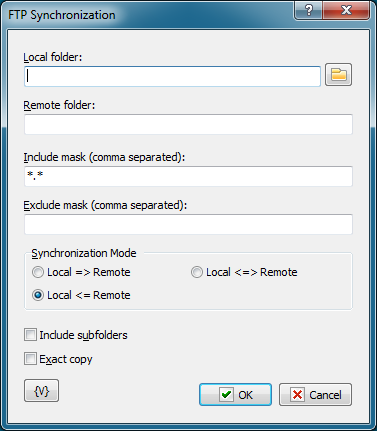
Local Folder.
The local folder for synchronization. You can specify the path to the folder manually or you can use the folder selection button to the right from the input field. Also, you can use variables in the path to the folder.
Remote Folder.
The folder on the FTP server for synchronization. You can use variables in the path to the folder.
Include Mask.
The list of file masks that you need to synchronize. You should separate file masks with a comma. All files are specified by default ("*.*").
Exclude Mask
The list of comma-separated file masks that should be excluded from synchronization. For example, you can specify *.* in the Include mask option and *.txt in the Exclude mask option. It will mean that all files except *.txt should be synchronized.
Synchronization mode.
There are 3 options to choose from:
Local => Remote – newer files from the local folder will be copied to the FTP server
Local <= Remote – the reverse operation, i.e. copying new files from the server to the local folder.
Local <=> Remote – bidirectional synchronization. Downloading newer files from the FTP server and uploading new files to the server.
Include Subfolders.
Select this checkbox if you want to include all subfolders in the specified folders to be included in the synchronization process.
Exact copy.
This option works only when the synchronization is one-directional. It does not make sense in case of bidirectional synchronization and so it is unavailable. If you want to get the exact copy of the initial folder, select this checkbox.
Note that the "Exact Copy" mode first copies newer files from the source folder to the target folder and then removes all files from the target folder that are absent in the source folder.
Variable
Allows you to add a variable to the action or triggering event that you selected. You must place the cursor in a edit box in the settings dialog window of the action or event and then click the {V} button.
 Related Topics