Sends keystrokes to a window that you specify or the window that is currently in focus. After you have opened an application programmatically, you can use this action to access menu commands using shortcut, or hot, keys, such as ALT + F to open the File menu. Send Keystrokes is one of the most powerful actions for manipulating applications.
Target
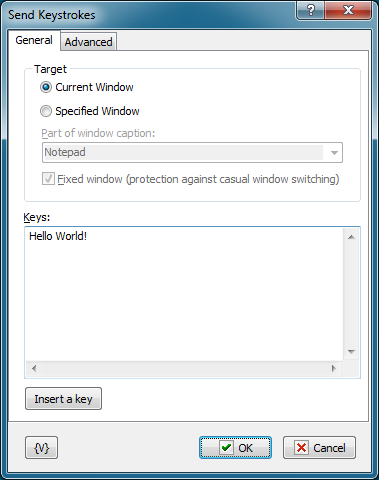
Specifies the window to send the keystrokes to. There are two choices:
•Current Window - the keystrokes are sent to the currently focused window.
•Specified Window - the specified window will be focused and the keystrokes are sent to it.
Part of Window Caption
Enter the caption, or part of the caption, of the window to send keystrokes to. This option is available only when you the Specified Window option is selected.
Fixed Window
Click this check box when you want to prevent a user from switching windows during the time that the action runs.
Keystrokes
Specifies the keystrokes that the action sends to the window. For the alpha-numeric characters, type these keys on the keyboard. For the special keys, such as Esc, F11, Left Arrow Key, and Ctrl+Alt+A, click the Insert a Key button.
Insert a Key
Click this button to insert special keys such as Esc, F11, Left Arrow Key, and Ctrl+Alt+A. You can also insert a pause between keystrokes to give time for program operations, such as opening a file.
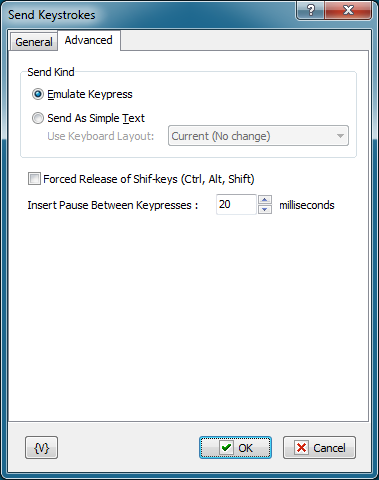
Send Kind
You can send keystroke in two ways: Emulate Keypresses or As Simple Text. The question is that different programs response on the simulation of keystroke differently.
•Emulate Keypresses –RoboTask emulates a hardware keystroke in this mode. It is possible to send keys combinations with Ctrl, Alt, Shift in this mode. Please note, that symbols ^, %, +, #, {, }, (, ) are used for recording keys combinations. These symbols are reserved for this mode. How to simulate sending of these keys is shown below.
•Send As Simple Text – simulation of a simple typesetting is produced in this mode. The text is sent as is, without using combinations. Pay attention that the sending of key presses is sensitive to the current Keyboard Locale.
Forced Release of Shift-keys
Switch on this parameter, if you want to make forced release of Shift-keys. You can turn off this parameter if you want to send some keystrokes when some of Shift-keys are held down (see Shift Keys State).
Insert Pause Between Keypresses
Insert pauses between separate keys presses in milliseconds. This is important particularly for the "Emulate Keypresses" mode. Pauses are necessary to give the application some time for response to the press of keys or keys combinations. By default, 20 milliseconds are preset. As a rule, this is enough for most cases.
Variable
Allows you to add a variable to the action or triggering event that you selected. You must place the cursor in a edit box in the settings dialog window of the action or event and then click the {V} button.
Standard keys for GDI windows
When you work with emulated key presses, we recommend that you use standard key combinations for controlling dialog boxes. These combinations work in most dialog boxes in Windows applications and you will not have to use the mouse.
Tab – move to the next control element of the dialog box;
Shift-Tab – move to the previous control element of the dialog box;
ESC – the same as a click on the Cancel button in most cases;
Enter – the same as a click on the OK button in most cases;
Ctrl-Tab – move to the next tab if the dialog box contains tabs;
Ctrl-Shift-Tab - move to the previous tab;
Key combinations
Ctrt |
- ^(<Letter>) , e.g. Ctrl-S -> ^(S) |
Alt |
- %(<Letter>) , e.g. Alt-W -> %(W) |
Shift |
- +(<Letter>) , e.g. Shift-W -> +(W) |
Win |
- #(<Letter>) , e.g. Win-E -> #(E) |
How to simulate reserved symbols: ^ % + # { } ( )
You can do this by using Shift combinations, like this
^ |
- Shift-6 , i.e. +(6) |
% |
- Shift-5 , i.e. +(5) |
+ |
- Shift-= , i.e. +(=) |
# |
- Shift-3 , i.e. +(3) |
{ |
- Shift-[ , i.e. +([) |
} |
- Shift-] , i.e. +(]) |
( |
- Shift-9 , i.e. +(9) |
) |
- Shift-0 , i.e. +(0) |
Also it's possible to use these symbols within braces
^ |
{^} |
% |
{%} |
+ |
{+} |
# |
{#} |
{ |
{{} |
} |
{}} |
( |
{(} |
) |
{)} |
For example to print the string: ^ % + # { } ( )
use the combination: {^} {%} {+} {#} {{} { }} {(} {)}
 Related Topics