Looks for files and creates a file list as multi-line text. Each file name on new line of text. This action is useful with pre-defined variables, such as {TextFile(file_name)}. You can create a file list, such as a list of all .Png files, and then use this in a list of actions, such as copying, moving, or deleting files.
General tab
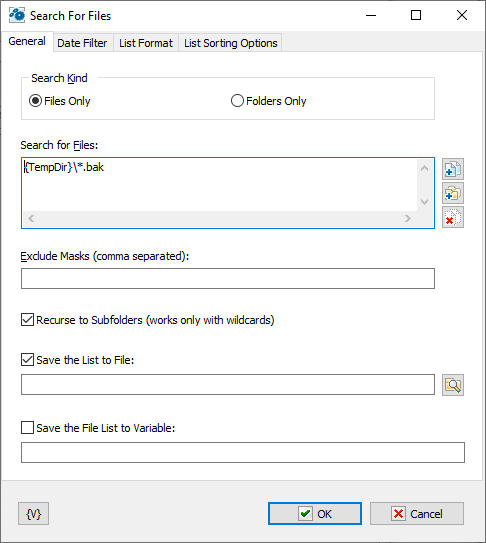
Search for Files
Enter the file path with file mask that you want to search for. Use the Plus buttons to add files or folders to the list. To clear the list, click the X button.
Tip You can also use wildcards in this option. Some examples of wildcards are the following: •C:\Text Files\*.txt - all the files with the .txt extension in the C:\Text Files folder. •C:\Doc Files\mydoc?.doc - mydoc1.doc, mydoc2.doc, mydocA.doc, and so forth. •{bakext} - file mask(s) from the {bakext} variable.
|
Exclude Masks (Comma Separated)
Enter one or more file masks separated with commas that you do not want to search.
Tip You can also use wildcards in this option. Some examples of wildcards are the following: •*.txt - all the files with the .txt extension. •mydoc?.doc - mydoc1.doc, mydoc2.doc, mydocA.doc, and so forth. •*.tmp, *.$$$, *.bak - all the files with the .tmp, .$$$ and .bak extensions. •{bakext} - file mask(s) from the {bakext} variable.
|
Recurse to Subfolders
Searches the files in the subfolders of the specified folder.
Save File List To
Enter a path and name for a file that contains a list of the files that were searched. Click the List Format tab to set other options for this list.
Variable
Allows you to add a variable to the action or triggering event that you selected. You must place the cursor in a edit box in the settings dialog window of the action or event and then click the {V} button.
Date Filter tab
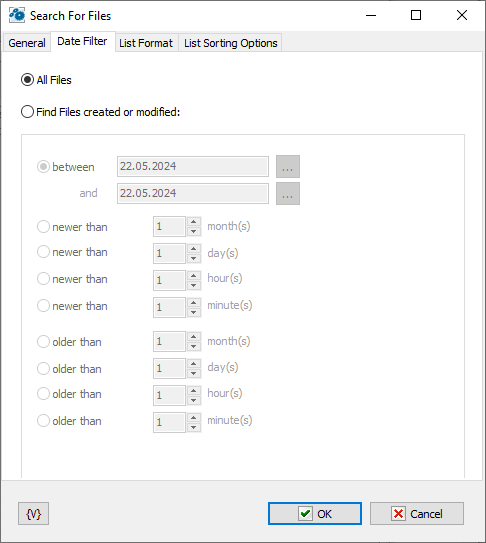
All Files
Select this option to search all files.
Find Files Created or Modified
Click this option to search files according to one of the following criteria:
•Between
•Newer Than ___ Months
•Newer Than ___ Days
•Older Than ___ Months
•Older Than ___ Days
List Format tab
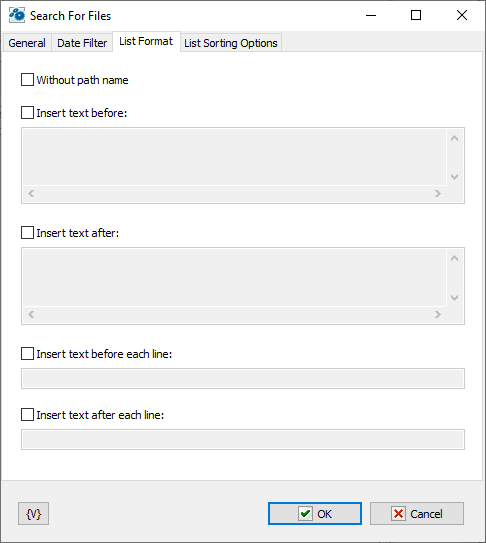
Without Path Name
Lists files without the path names (i.e. file names only).
Insert Text Before
You can specify a text that will be inserted at the beginning of the list file.
Insert Text After
You can specify a text that will be inserted at the end of the list file.
Insert Text Before Each Line
You can specify a text that will be inserted at the beginning of each line.
Insert Text After Each Line
You can specify a text that will be inserted at the end of each line.
List Sorting options
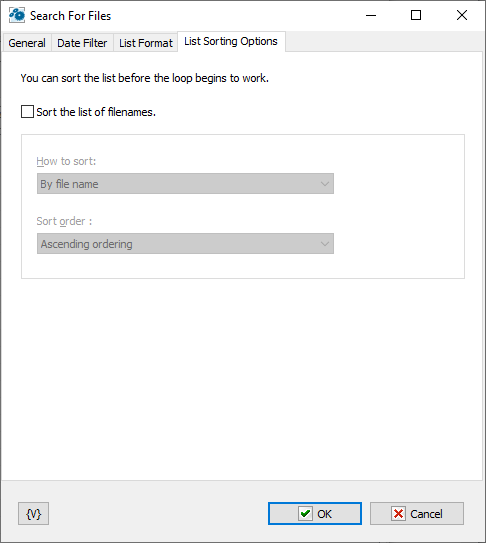
Parameters of internal sorting of the file list
Sort the list of filenames
Turn on the checkbox if you want to sort the list
How to sort
There are four sorting modes:
•By file name
•By file time
•By file size
•By depth of nested folders
Sort order
There are two modes: ascending or descending ordering
Variable
Allows you to add a variable to the action or triggering event that you selected. You must place the cursor in a edit box in the settings dialog window of the action or event and then click the {V} button.
 Related Topics