Synchronizes the two folders that you specify. The synchronization method may be bi-directional or uni-directional. For example, if you travel a lot, you might want to create a task that synchronizes data in a folder on your laptop computer and a folder on your desktop computer.
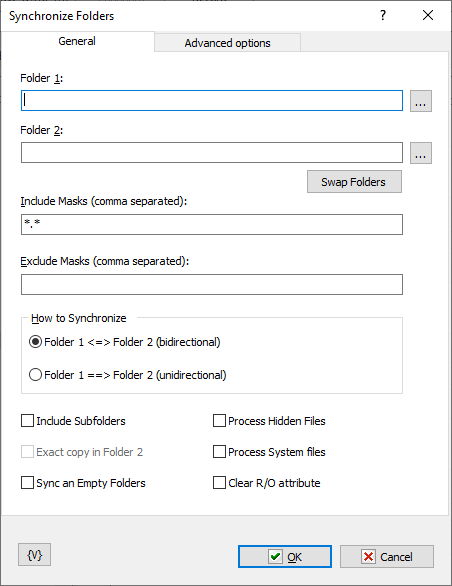
General tab
Folder 1
Enter the first folder that you want to synchronize. You can click the browse button to select a folder.
Folder 2
Enter the second folder that you want to synchronize.
Swap Folders
Click to place the folder listed in Folder 2 in the Folder 1 box and the folder in Folder 1 in the Folder 2 box.
Include Masks (Comma Separated)
Enter one or more masks separated with commas to specify which files to synchronize, such as *.exe, *.cnt, *.hlp. The default wildcard mask "*.*" means that all folders and files are synchronized. You can specify one or more masks separated by commas.
Tip You can also use wildcards in this option. Some examples of wildcards are the following: •*.txt - all the files with the .txt extension. •mydoc?.doc - mydoc1.doc, mydoc2.doc, mydocA.doc, and so forth. •*.tmp, *.$$$, *.bak - all the files with the .tmp, .$$$ and .bak extensions. •{bakext} - file mask(s) from the {bakext} variable.
|
Exclude Masks
Enter one or more masks separated with commas to specify which files to skip in the synchronization. You can specify one or more masks separated by commas; for example, *.bak, *.old, *.$$$.
How to Synchronize
Select one of the following options:
•Folder 1 <=> Folder 2 (Bi-directional) - new or newer files that are available in Folder 1 are copied to Folder 1, and vice versa.
•Folder 1 ==> Folder 2 (Uni-directional) - only new or newer files that are available in the Folder 1 are copied to Folder 2; the contents of Folder 2 does not affect the contents of Folder 1.
Include Subfolders
Click this check box to synchronize all files in the subfolders.
Exact Copy in Folder 2
Available only with unidirectional synchronization when you select Folder 1 ==> Folder 2. This option ensures that files that are available in Folder 2, but not in Folder 1, are deleted.
Sync an Empty Folders
If this checkbox is switched on, the action copies the structure of empty folders. Otherwise, only files will be synchronized.
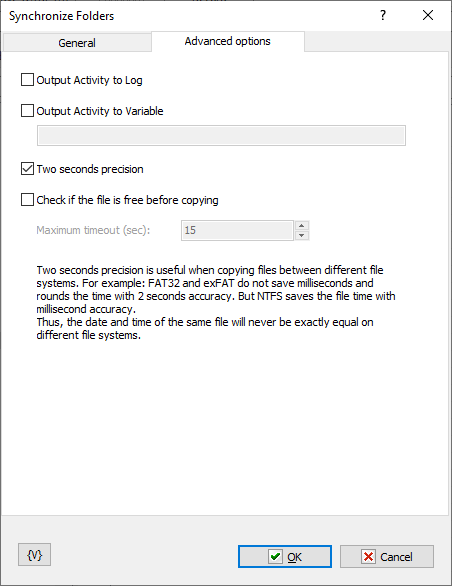
Advanced options
Output Activity to Log
If you want to write the log of synchronization into the task log, switch on this checkbox. The action will put the information about coped and removed files into the task log.
Output Activity to variable
If you want to write the log of synchronization into a variable, switch on this checkbox and put the variable name in the field. The action will put the information about coped and removed files into the log.
Two seconds precision
Two seconds precision is useful when copying files between different file systems. For example: FAT32 and exFAT do not save milliseconds and rounds the file time with 2 seconds accuracy. But NTFS saves the file time with millisecond accuracy.
Thus, the date and time of the same file will never be exactly equal on different file systems.
Check if the file is free before copying
If you want to ensure that the file is not open in another application, check this checkbox and specify the required timeout for waiting. If the file is not released within the specified timeout, the action will issue a warning "Can't copy file" and skip copying this file.
Variable
Allows you to add a variable to the action or triggering event that you selected. You must place the cursor in a edit box in the settings dialog window of the action or event and then click the {V} button.
 Related Topics